Microsoft’s April update for Windows 11 is rolling out as a quiet, unusually practical bundle: faster File Explorer, a handful of accessibility upgrades powered by Copilot, easier app and security control, and even a long-overdue change to how Windows handles FAT32 storage.
The changes aren’t flashy, but they’re the kind of polish power users and everyday folks will notice immediately — shorter waits, fewer crashes, and less fiddling to make the OS behave the way you want.
File Explorer: speed, stability and fewer visual hiccups
The most visible tweaks land in File Explorer. Microsoft has pushed performance improvements that shave time off common tasks — think faster folder navigation and snappier file previews — while also addressing a set of nagging explorer.exe crashes that sometimes left users restarting the shell. Dark mode rendering gets cleaner too, with fewer text and background contrast issues that made some Explorer panes look wrong for users who prefer a darker UI.
Microsoft is also adding richer archive handling: Explorer will better recognize and let you work with compressed files without turning to third-party tools. The rollout looks incremental, so you may see the features appear on some machines before others.
Storage: the 32GB FAT32 limit finally loosened
One small technical quirk that has annoyed people for decades is getting fixed: Windows will no longer enforce the artificial 32GB limit when formatting drives as FAT32. The filesystem itself supports much larger volumes, and Microsoft’s change means you’ll be able to format larger flash drives and SD cards to FAT32 from Windows without relying on third-party utilities.
That’s a boon when you need broad device compatibility — camera bodies, some set-top boxes, and older game consoles still prefer FAT32 — and it removes one more little compatibility headache from everyday workflows.
Accessibility and Copilot: voice renaming and image descriptions
Several accessibility improvements arrived in this update. File Explorer gets a voice-rename option: hit Windows+H while renaming and speak the new filename — handy for hands-free workflows and a meaningful help for some assistive setups.
Narrator’s image description capability also expands. Previously contingent on specific hardware (a Copilot+ PC with an NPU), Copilot-powered descriptions can now be summoned more broadly to describe images or selected screen areas. To analyze a full screen, press Narrator Key+Ctrl+S; to analyze a portion, press Narrator Key+Ctrl+D. If you’re interested in Microsoft’s broader Copilot plans, this fits into a larger push toward always-available assistant features Microsoft Eyes an Always‑On Copilot — Think OpenClaw, but Safer.
Security and app control: less reinstalling, easier unblocking
Smart App Control — the safeguard that blocks untrusted apps — is no longer a one-way street. You can now toggle it on or off from Windows Security (Settings > Windows Security > App & Browser Control > Smart App Control) without reinstalling the OS. That should make experimenting with niche apps and developer builds less painful.
Windows is also improving how it handles files flagged as downloaded from the web. The Unblock toggle in a file’s Properties window is more reliable as a one-off exemption, removing the Zone Identifier so you can preview or run a file without changing system-wide policies.
On the app front, Microsoft is testing a simpler way to remove default Windows apps in newer builds — good news if you prefer a lean system or want to swap out bundled apps for third-party alternatives.
Gaming: Xbox Mode expands to more Windows machines
Microsoft is widening the reach of Xbox Mode beyond Xbox hardware. The feature — which optimizes Windows for gaming workloads, resource prioritization and input handling — is being extended to laptops, desktops and tablets. The move should help casual gamers and more performance-conscious users get steadier frame rates and lower latencies without manual tuning.
Settings and system info: a friendlier Home page
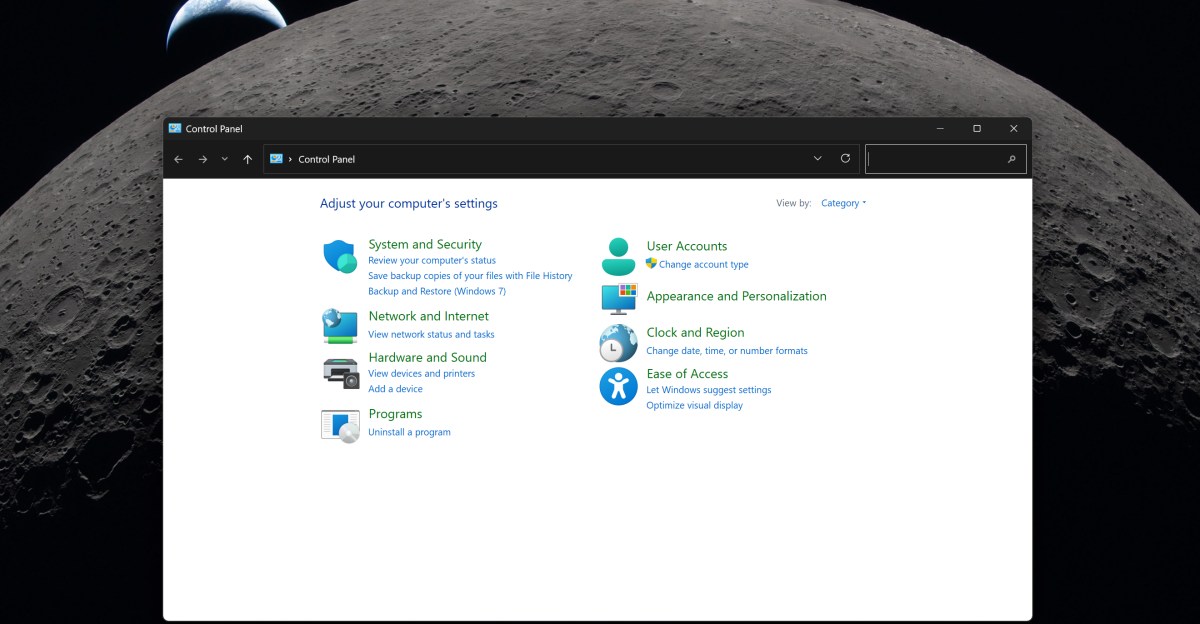
The Settings app’s Home page is getting smarter. A concise hardware summary now appears on the Home view, and the About page consolidates previously scattered details, including GPU and storage info. It’s a small but welcome convenience if you ever need a quick snapshot of a PC’s specs — or if you’re troubleshooting why something behaves differently across machines. This fits into a longer shuffle of where Windows keeps system controls and legacy panels; if you’ve followed Microsoft’s slow migration away from old Control Panel bits, the changes make sense in that broader context Why Microsoft’s purge of the old Control Panel is taking so long.
A pragmatic update
None of these changes is a headline-stealing reinvention, but together they tidy up real user annoyances: Explorer that feels faster, fewer crashes, more useful accessibility, and less friction for storage and app control. Microsoft appears to be spending some of this year’s update budget on polish — and for many people, polish matters more than new gimmicks.
Keep an eye on Windows Update; Microsoft is rolling features out gradually, so you might get some improvements sooner than others. If nothing else, this update is the kind of small, steady progress that adds up over months — and that’s a nice change of pace.